


Error “The last iCloud Backup could not be completed” on iPhone | How To Fix?
It is important to back up your iPhone periodically and preparing your device to automatically back up to the cloud is the most convenient option.
This means backing up the entire device to iCloud For iPhone and iPad users. Backups are automatic as long as the device is connected to Wi-Fi.
However, you may sometimes find an error message saying “The last backup could not be completed” when you check your iCloud backup settings.
 |
| Error The last iCloud Backup could not be completed on iPhone – How To Fix? |
This
error message doesn’t exactly reveal that the problem is the cause of iCloud
backups failing. Given how necessary regular backups are, this error message
can be a little annoying. But it can be solved with some simple troubleshooting
tricks.
At
this time, you might try to complete the backup manually, but you usually get
another message that says “iCloud Backup Failed.” If the “Last
backup could not be completed” error still appears while trying to back up
the iPhone to iCloud, try the troubleshooting steps below.
Fix “The last iCloud Backup could not be completed” error on iPhone
You may like to see: Fix Cydia Impactor Error 168: provision.cpp:168 error in iOS
iCloud
Backup errors are caused by a variety of factors, including
- Mismatched
Apple ID credentials. - Not enough iCloud storage.
- The Wi-Fi connection is weak.
- The lack of actual storage space on the device.
Regardless
of the cause, the problem is on all iPhones and iPads that have iCloud enabled
and more specifically automatic iCloud backups.
1. Update the iOS software to the latest version
- iCloud
backup failure on your iPhone or iPad can be due to an outdated iOS version. - Open
the Settings app on the phone and go to General> Software Update, and
download the latest available iOS version to the device.
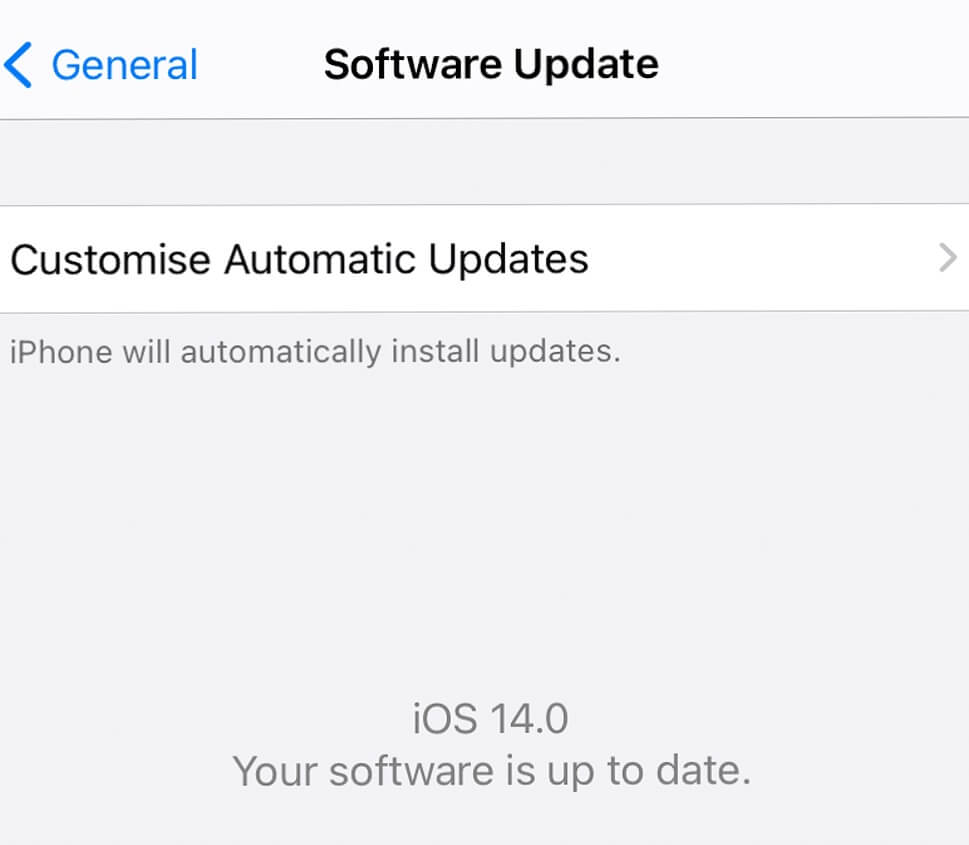 |
| Update the iOS software to the latest version |
2.
Make sure iCloud backup is enabled
- It’s
possible that the iCloud backup setting was not enabled properly. - Check
the Settings app on your iOS device and make sure iCloud Backup is on.
3.Connect the device to a Wi-Fi network and power source
- Auto
iCloud backup starts at night only when your device is locked and connected to
Wi-Fi and power source. - Make
sure that the device is connected to the electrical outlet at night (taking
precautions for safety when connecting the mobile phone during sleep) and
verify its connection to the Wi-Fi network.
 |
| Connect the device to a Wi-Fi network and power source |
4.
Check if iCloud services are disabled
- iCloud
backups on your iPhone or iPad can also fail due to a malfunction in the iCloud
service on Apple’s part. - If
this is the case, then you have no choice but to wait for Apple to fix the
problem. - You
can go to Apple’s official Support System Status website to see if all Apple
services including iCloud are working fine.
You may like to see: How to license and install the IPA Application by iOS device via Cydia Impactor on iPhone
5.
Sign out and sign in again
- Sign
out of your iCloud account, then sign in again. This can sometimes fix any
iCloud account issues. - You
can open the Settings app on the iPhone, go to Profile> Sign Out. - Sign
in with the same Apple ID This can solve the iCloud Backup issue.
 |
| Sign out and sign in again |
6. Check iCloud space
By default, iCloud only
provides 5 GB of space. You may have little iCloud storage space to
successfully backup iCloud data. Follow the steps below to check iCloud space
on your iPhone.
- Open the Settings app on
the phone. - Go to Profile> iCloud
and here you will see a detailed storage diagram of the remaining space.
If you have low storage
space, be sure to free up some space by deleting irrelevant files or upgrading
to a higher storage plan.
Premium iCloud plans start at $ 1 a month for 50GB.
You can also use the $ 3 / month 200GB plan that comes with Family Sharing.
Highest 2 TB plan $ 10 per month.
7. Optimize iCloud storage
- If you don’t want to pay
for the iCloud subscription, then you need to optimize the default 5GB storage
capacity on the iPhone. - The first thing that you
can do is disable backing up photos and videos to iCloud. - Open the Settings app on
iPhone and go to Profile> iCloud> Photos and disable iCloud Photos from
the following menu. - You can also disable
irrelevant app data from iCloud backup, resulting in smaller iCloud backup
size.
8. Delete the current
iCloud backup
If you already took a
previous backup of your data to iCloud, it could make the iCloud backup process
stuck.
To quickly fix iPhone iCloud backup failure issue, you should delete the
existing iCloud backup on iPhone and try to backup data from the beginning.
Here are step-by-step instructions to delete iCloud backup on the device.
- Open the Settings app on
the iPhone. - Go to Profile>
iCloud> iCloud Storage. - Go to Storage Manager and
select the current iPhone backup. - From the following menu,
delete your current iCloud backup and start the iCloud backup process from
scratch.
You may like to see: How to Change the Default Email and Browser on iPhone iOS 14?
9. Make sure your iPhone
has enough storage space
When your iPhone’s local
storage is full, it has trouble completing basic tasks, like backing it up to
iCloud.
Check the available storage space on the device and see if it has at
least 1 GB of free space.
Free up space on your device if needed.
- Open the Settings app on
the iPhone and go to General> iPhone Storage. - Here, you will see a
detailed breakdown of iPhone storage. - You can also unmount
unused apps to free up more space on the iPhone.
10. Reset network
settings
- If none of the previous
options work for you, then you should try to reset the network settings on your
iOS device. The option will reset all network settings to defaults. This
includes Wi-Fi connections, etc. - It will also reset your
iCloud settings, which means it should hopefully fix the “iCloud backup
could not be completed” error. - To find the option, go to
Settings> General> Reset and click on the option to Reset Network
Settings.
11. Force restart iPhone
If none of the previous
options also resolved your iCloud backup issue, you can try to force restart it
to see if that helps.
Depending on the iPhone you have, the steps to force
restart your iPhone will be different.
- On iPhone 8 and newer
iPhones without the Home button, you need to press the Volume Up button
followed by the Volume Down button and then press and hold the Side button
until you see the Apple logo to force restart your iPhone. - On iPhone 7, you need to
press and hold the Lock / Wake button (Side) and Volume Down button for a few
seconds until you see the Apple logo to force restart your iPhone. - On iPhone 6s or earlier,
you need to press and hold the Lock / Wake button and the Home button for a few
seconds until you see the Apple logo to force restart your iPhone.
12. Backup using iTunes
on a computer
- It is very easy
to fix the “iCloud backup could not be completed” error. - Troubleshooting steps
should fix the problem but if you still have issues with iCloud backup, then
take the iPhone backup using iTunes on a computer.
13. Contact iCloud Support
- This should be the last
option on your list. - Visit Apple’s iCloudsupport page, which covers a variety of help topics offered by phone, chat, and
email support.
the last backup could not be completed, icloud the last backup could not be completed, icloud backup stuck on estimating time remaining, iphone won’t backup to icloud not enough storage.
icloud backup not working, icloud backup could not be completed poor network conditions, the last backup could not be completed 2021, icloud the last backup could not be completed.
icloud backup stuck on estimating time remaining, iphone won’t backup to icloud not enough storage, icloud backup not working, icloud backup could not be completed poor network conditions.
the last backup could not be completed because icloud contains a backup from a newer ios version, the last backup could not be completed 2021, icloud backup not working.
icloud backup stuck on estimating time remaining, there was a problem enabling icloud backup, icloud backup not showing up
